
Works with Claude and ChatGPT
Your recipes, inside Claude and ChatGPT
Connect Cuoco to the assistant you already use. Ask in your own words and it reads and updates your recipes, meal plan and shopping list.
What your assistant can do
Recipes
Search your recipes and read any of them in your own units. Save a new one from a link or from text in your chat. Edit a recipe or mark it as a favourite.
Collections
See your collections, create or rename one, and add or remove recipes. See what you've cooked recently and most often.
Meal plan
See what's planned, add a recipe or a note to a day, or take one off.
Shopping list
See your list, add items or a whole recipe's ingredients, tick things off, edit or remove an item, and clear what you've ticked.
You stay in control
- It asks before making changes, unless you've told it to always allow them.
- It can't delete recipes or collections.
- It can't clear your whole meal plan or shopping list in one go.
- It can't touch your account or subscription.
Edits your assistant makes to a recipe can't be undone, so check what it's about to change before you allow it.
Connect in a minute
https://mcp.get-cuoco.app/mcp- 1
In Claude (claude.ai or the Claude desktop app), open Settings, then Connectors, then choose "Add custom connector".
- 2
Name it Cuoco, paste the address above, choose Add, then Connect.
- 3
A Cuoco page opens. Sign in with the same Apple or Google account you use in the app, then choose Allow.
- 4
Start a chat and ask, for example, "What recipes do I have in Cuoco?"
Custom connectors are available on every Claude plan. Free accounts can add one. Claude's guide to custom connectors
Set this up at chatgpt.com in a web browser, not in the ChatGPT desktop app.
- 1
Download the Cuoco icon first. You can only add it while setting up.
 Download the Cuoco icon
- 2
At chatgpt.com, click your profile picture, then Settings, then Plugins, then Browse Directory, then Add, then "Add Custom MCP Server".
- 3
Fill in the form. Icon: click + and choose the icon you downloaded. Name: Cuoco. Description: "Search my recipes, plan meals and manage my shopping list". Connection: leave on Server URL and paste the address above. Authentication: OAuth.
- 4
Tick "I understand and want to continue" and confirm.
- 5
A Cuoco page opens. Sign in with the same Apple or Google account you use in the app, then choose Allow.
- 6
Start a new chat and ask away.
Tested on ChatGPT Plus. Other ChatGPT plans may handle custom connectors differently.
Things to ask
- What recipes do I have in Cuoco that use chicken?
- What's on my meal plan this week?
- Add my lasagne to Friday's dinner.
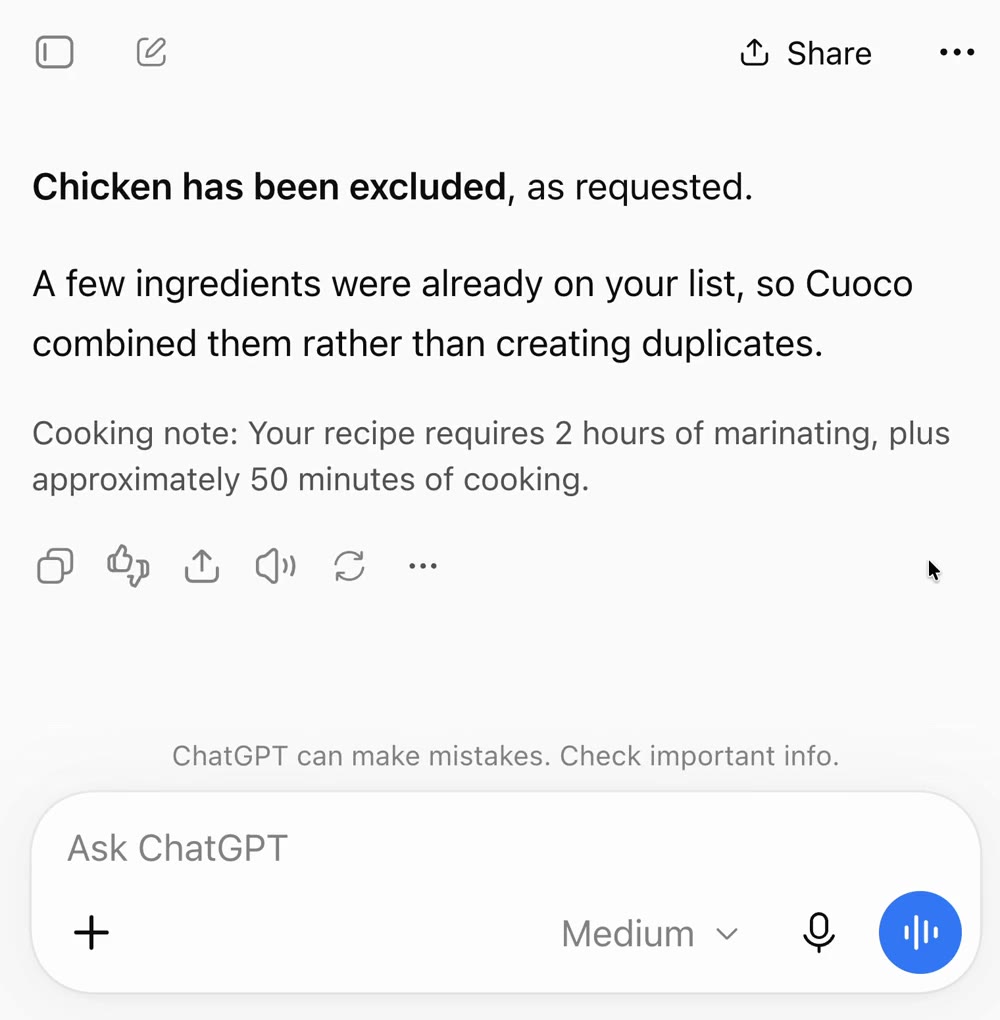
- Add the ingredients for Friday's dinner to my shopping list.
- What's still on my shopping list?
- Save this recipe to Cuoco: (then paste a link)
- Make a collection called Quick weeknights and add my chilli to it.
- What have I cooked most often?
Good to know
- Saving recipes and adding to your shopping list use your Cuoco AI allowance, and need AI features switched on in the app.
- Disconnect any time in the app: Settings, then Connected Apps.
- What your assistant can see and do is set out in our Privacy Policy.